I walk you through every step you need to use Education Portal 3.0 with confidence. You will learn how to log in to the portal, manage student records, generate transfer certificates, register your school, and handle guest teacher assignments through the GFMS module. Each process is explained clearly so you can manage your responsibilities on sederp.educationportal3.in independently without confusion.
What Is Education Portal 3.0?
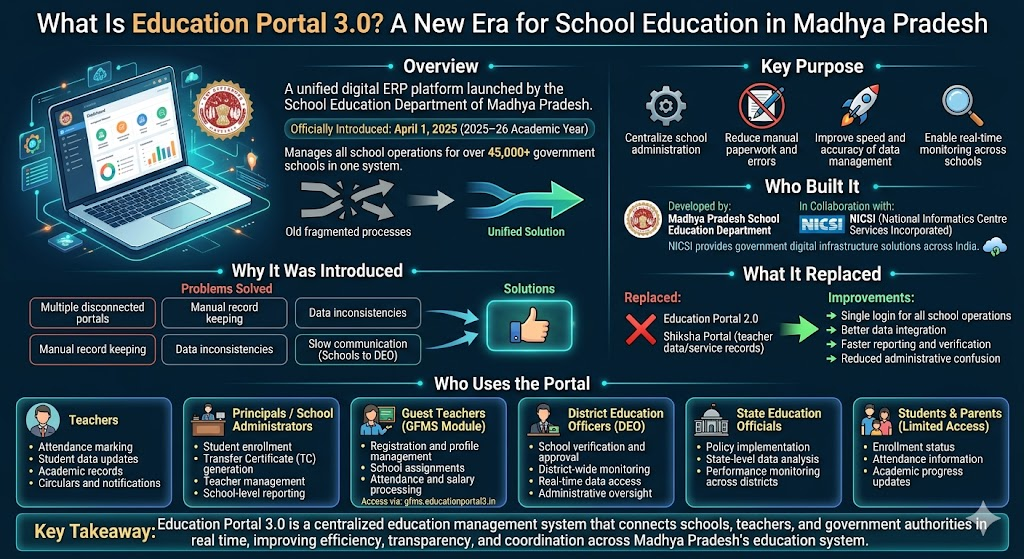
Education Portal 3.0 is the unified digital platform launched by the Madhya Pradesh School Education Department for the 2025-26 academic year. It officially went live on April 1, 2025, replacing two older systems that schools across the state had relied on for years. If you worked with Education Portal 2.0 or the Shiksha Portal before, you already know how fragmented those systems felt. This platform was built specifically to fix that.
Key Purpose
- Centralize school administration in one platform
- Reduce manual paperwork and errors
- Improve speed and accuracy of data management
- Enable real-time monitoring across schools
Who Built It
- Developed by the Madhya Pradesh School Education Department
- Built in collaboration with NICSI (National Informatics Centre Services Incorporated)
NICSI provides government digital infrastructure solutions across India.
Why It Was Introduced
Earlier systems created several problems:
- Multiple disconnected portals for different tasks
- Manual and paper-based record keeping
- Data inconsistencies between systems
- Slow communication between schools and DEO offices
Education Portal 3.0 was created to solve these issues by unifying all functions into one platform.
What It Replaced
- Education Portal 2.0
- Shiksha Portal (teacher data and service records system)
Improvements:
- Single login for all school operations
- Better data integration
- Faster reporting and verification
- Reduced administrative confusion
Who Uses the Portal
1. Teachers
- Attendance marking
- Student data updates
- Academic records
- Circulars and notifications
2. Principals / School Administrators
- Student enrollment
- Transfer Certificate (TC) generation
- Teacher management
- School-level reporting
3. Guest Teachers (GFMS Module)
- Registration and profile management
- School assignments
- Attendance and salary processing
- Access via gfms.educationportal3.in
4. District Education Officers (DEO)
- School verification and approval
- District-wide monitoring
- Real-time data access
- Administrative oversight
5. State Education Officials
- Policy implementation
- State-level data analysis
- Performance monitoring across districts
6. Students & Parents (Limited Access)
- Enrollment status
- Attendance information
- Academic progress updates
Benefits of Education Portal 3.0
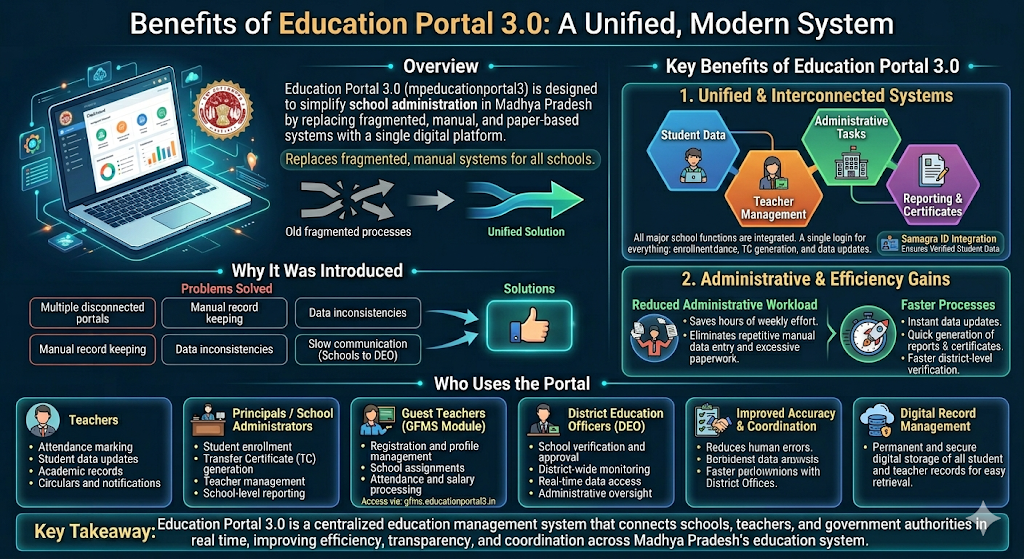
Using mpeducationportal3 removes the administrative burden that used to eat up hours of your working week. Before this platform existed, schools in Madhya Pradesh managed student records, teacher data, and attendance through disconnected systems. Some of it was still paper-based. That created errors, delays, and a lot of unnecessary back-and-forth between schools and district offices. This portal consolidates everything. Student enrollment, attendance tracking, transfer certificate generation, teacher management, and report downloads all live inside one system. You log in once and handle tasks that previously required multiple platforms or physical visits.
Key Benefits
1. Reduced Administrative Workload
- Eliminates time-consuming manual paperwork
- Reduces repetitive data entry across systems
- Saves hours of weekly administrative effort
2. Unified System for All Tasks
All major school functions are available in one platform:
- Student enrollment
- Attendance tracking
- Teacher management
- Transfer Certificate (TC) generation
- Report generation
3. Eliminates Multiple Platforms
- No need to switch between systems
- Reduces dependency on physical office visits
- Centralized access through a single login
4. Improved Accuracy of Data
- Reduces human errors from manual records
- Samagra ID integration ensures verified student data
- Consistent records across government systems
5. Faster Administrative Processes
- Instant updates instead of delayed paperwork
- Quick generation of reports and certificates
- Faster verification by district authorities
6. Better Coordination with District Offices
- Direct digital communication with DEOs
- Reduced back-and-forth between schools and offices
- Clear tracking of approvals and submissions
7. Digital Record Management
- Permanent storage of student and teacher data
- Easy retrieval of past records
- Secure and structured documentation system
What is the Objectives Behind Education Portal 3.0
The Madhya Pradesh School Education Department built this platform with a clear purpose. It was designed to replace fragmented older systems like Education Portal 2.0 and the Shiksha Portal, and to bring all 45,000 government schools in the state onto one unified digital platform. The core objective is transparency. Every record, every update, and every administrative action leaves a digital trail. That accountability was simply not possible under the old system.
Key Concept: Role-Based System
The portal works on a role-based structure, meaning:
- Teachers see classroom-level tools
- Principals see full school administration tools
- DEOs access district-wide monitoring tools
- Guest teachers use GFMS only
This reduces confusion and keeps the system organized.
Student Management Tools
1. Student Enrollment
- Uses Samagra ID for identity verification
- Prevents duplicate student records
- Auto-fills student data from government database
2. Attendance Tracking
- Daily attendance recorded in portal
- Stored monthly for analysis
- Helps identify absent or at-risk students
3. Academic Records
- Teachers enter marks, grades, and progress reports
- Replaces paper-based report cards
- Data accessible to authorized users anytime
4. Transfer Certificate (TC)
- Digital TC generation through portal
- Includes digital signature for verification
- Reduces fake or manual certificate issues
- Includes process for closed school students
5. Document Management
- Upload student documents (ID, certificates, photos)
- Maintains complete digital student record
Teacher & Guest Faculty Management
Regular Teachers
- Update personal and service details
- All changes go through verification
- Ensures accurate teacher database
Guest Teachers (GFMS)
- Registration, profile updates, assignments managed via GFMS
- Schools request guest teachers through system
- Matching based on subject and location
- Attendance data linked to salary processing
School Administration Features
1. School Registration
- Online registration using UDISE code
- Verified by District Education Officer (DEO)
- Approved schools receive login credentials
2. Infrastructure & Profile Data
- Stores classroom count and facilities
- Includes school location and category
- Used for government planning and funding decisions
3. Communication System
- Official circulars and notifications published digitally
- Removes dependency on physical documents
- Faster policy updates across schools
4. Automated Reporting
- Generates attendance and enrollment reports
- Reduces manual paperwork
- Saves administrative time
Real-Time Monitoring System
Key Feature:
- Data updates instantly across the system
Benefits:
- Principals see updates immediately
- DEOs monitor schools in real time
- State officials track district performance instantly
Importance of Transparency
- All data is visible to higher authorities
- Attendance and enrollment are continuously monitored
- Ensures accountability at school level
- Improves decision-making across the education system
Services Available On Education Portal 3.0
MP Education Portal 3.0 gives you access to a wide range of services through a single login. Student enrollment with Samagra ID integration, attendance tracking, transfer certificate generation, guest teacher registration through GFMS, school registration using UDISE codes, academic report downloads, and access to official government circulars are all part of the platform. Each service is role-based, meaning what you see after logging in depends on whether you are a teacher, principal, DEO, or parent. This role-based access is one of the smarter design decisions built into the system.
Key Warning
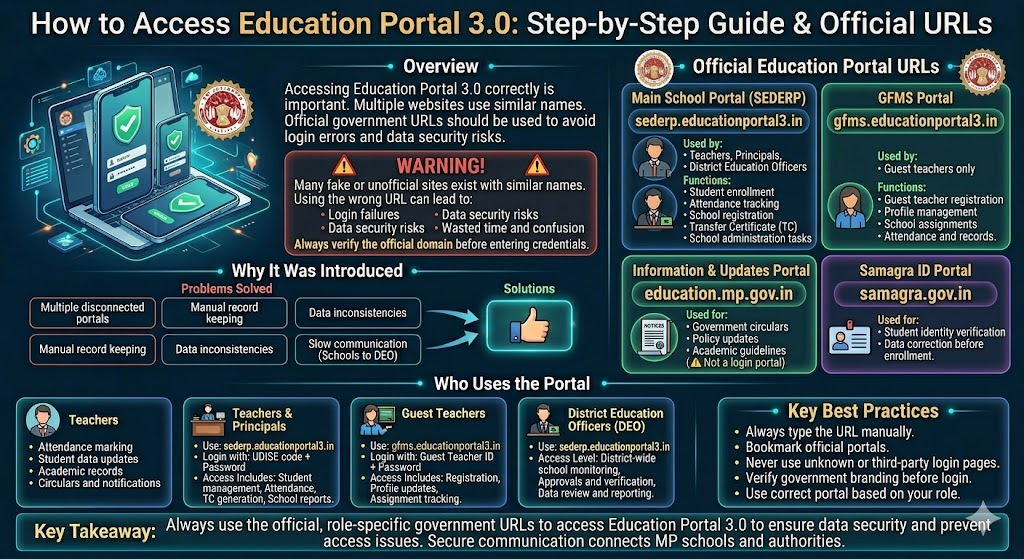
- Many fake or unofficial sites exist with similar names
- Using the wrong URL can lead to:
- Login failures
- Data security risks
- Wasted time and confusion
Always verify the official domain before entering credentials.
Official Education Portal URLs
1. Main School Portal (SEDERP)
- URL: sederp.educationportal3.in
- Used by:
- Teachers
- Principals
- District Education Officers
Functions:
- Student enrollment
- Attendance tracking
- School registration
- Transfer Certificate (TC) generation
- School administration tasks
2. GFMS Portal (Guest Teachers)
- URL: gfms.educationportal3.in
- Used by:
- Guest teachers only
Functions:
- Guest teacher registration
- Profile management
- School assignments
- Attendance and records
3. Information & Updates Portal
- URL: education.mp.gov.in
- Used for:
- Government circulars
- Policy updates
- Academic guidelines
4. Samagra ID Portal
- URL: samagra.gov.in
- Used for:
- Student identity verification
- Data correction before enrollment
Role-Based Access Guide
Teachers & Principals
- Use: sederp.educationportal3.in
- Login with:
- UDISE code
- Password
Access Includes:
- Student management
- Attendance
- TC generation
- School reports
Guest Teachers
- Use: gfms.educationportal3.in
- Login with:
- Guest Teacher ID
- Password
Access Includes:
- Registration
- Profile updates
- Assignment tracking
District Education Officers (DEO)
- Use: sederp.educationportal3.in
- Access Level:
- District-wide school monitoring
- Approvals and verification
- Data review and reporting
Key Best Practices
- Always type the URL manually
- Bookmark official portals
- Never use unknown or third-party login pages
- Verify government branding before login
- Use correct portal based on your role
Education Portal 3.0 – Login Process
To log in, you go directly to sederp.educationportal3.in and enter your credentials. Teachers use their employee ID. Principals log in using the school UDISE code. District Education Officers have separate credentials issued by the department. The login page is straightforward, but a surprising number of users still try to access the old Shiksha Portal URL out of habit. That is one of the most common mistakes I see. If your login fails repeatedly, do not keep trying the same credentials. Visit the password reset option on the portal or contact the official helpdesk at helpdeskportal3@gmail.com directly.
How to Log In to Education Portal 3.0
Best Practice (Important)
- Never save portal credentials on shared or public school computers
- Avoid storing passwords in browser auto-save on shared devices
- Keep login details written securely offline
- Shared devices can lead to unauthorized access and data issues
Key Requirements Before Login
- UDISE code or username
- Password (case-sensitive)
- Stable internet connection
- First-time credentials from registered mobile/email
If credentials are missing, contact DEO office before attempting login.
Step-by-Step Login Process
1. Open Official Portal
- Go to: sederp.educationportal3.in
- Enter URL manually (do not use search engines)
- Wait for homepage to load completely
2. Enter UDISE Code / Username
- Use 11-digit UDISE code (school users)
- Teachers may use assigned usernames
- Double-check for typing errors
3. Enter Password
- Password is case-sensitive
- Check Caps Lock before entering
- Use temporary password for first login
- Change password after first login
If forgotten, use Forgot Password instead of repeated attempts.
4. Access Dashboard
- Click login button
- Select role if prompted
- Dashboard opens with relevant modules
Common Login Issues & Fixes
- Wrong URL → Always type manually
- Incorrect credentials → Recheck UDISE/username
- Page not loading → Check internet or try later
- Dashboard not opening → Clear browser cache or change browser
- Account lock → Wait or reset password
GFMS Login (Guest Teachers)
1. Open GFMS Portal
- Visit: gfms.educationportal3.in
2. Enter Guest Teacher ID
- Use issued guest faculty ID
- Retrieve via Know Your ID option if forgotten
3. Access Profile
- Enter password and login
- Review profile details after first login
- Correct errors in subject or personal data immediately
Key Guidelines
- Always use official portal URLs
- Avoid multiple failed login attempts
- Keep credentials secure and private
- Use correct portal for correct user type (school vs guest teacher)
How to Register New School on Education Portal 3.0
Education Portal 3.0 makes school registration a structured process, but it requires careful attention at every step. You log into sederp.educationportal3.in, go to the School Directory section, and select New School Registration. From there, you fill in location details, infrastructure information, and upload your verified documents before submitting.
Key Point: Common Mistake
- Most rejections happen due to:
- Low-quality or unverified documents
- Incorrect school category details
Important:
- Always verify documents before submission
- School category changes after submission are difficult and require formal approval
Requirements Before Registration
1. UDISE Code
- Mandatory 11-digit code from UDISE+
- Must be verified via: udiseplus.gov.in
- Registration cannot proceed without it
2. Official School Documents
- Government recognition certificate
- Valid and updated registration papers
3. Infrastructure Details
- Number of classrooms
- Facilities (water, electricity, toilets, playground)
- Full school address and location details
4. Principal Details
- Aadhaar number
- Active mobile number (for credentials delivery)
Step-by-Step Registration Process
Step 1: Open Portal
- Visit sederp.educationportal3.in
- Select New School Registration
Step 2: Enter UDISE Code
- Input 11-digit UDISE code
- System verifies with national database
Step 3: Fill School Details
- School name (exact match with official records)
- Category (primary/middle/secondary)
- Medium of instruction
- Infrastructure details
- Full address and location
Step 4: Upload Documents
- Registration certificate
- Principal ID proof
- Other required approvals
- Ensure clear, valid, and readable scans
Step 5: Submit Application
- Review all details carefully
- Submit form
- Save submission reference number
After Submission Process
DEO Verification
- District Education Officer reviews application
- Checks documents and school data
- Approves or rejects application
Approval Outcome
- ✔ Approved → Credentials sent to principal via mobile/email
- ✖ Rejected → Corrections required and resubmission needed
Post-Approval Steps
- Login using received credentials
- Change temporary password immediately
- Complete school profile setup
Common Issues Leading to Rejection
- Blurry or incomplete scanned documents
- Mismatched school category or name
- Invalid or unverified UDISE code
- Incorrect infrastructure details
Key Best Practices
- Double-check all data before submission
- Ensure documents are signed and valid
- Use accurate official school records
- Keep submission reference number safe
How to Update Student Profile on Education Portal 3.0
Student profile updates are something every school handles throughout the academic year, and the portal makes this relatively simple once you know the flow. You log in with your school credentials, navigate to Student Directory, search for the student using their Samagra ID, and make the required corrections before saving.
Key Issue: Samagra Name Mismatch
One of the most common problems is a mismatch between:
- Name in Samagra ID
- Name entered during school enrollment
Impact:
- Blocks updates
- Causes attendance errors
- Fails TC generation
Prevention:
- Always verify Samagra details before enrollment
- Fixing later requires district-level correction in many cases
Key Components of Student Management
1. Student Directory System
- Central hub for all student data
- Accessible via: sederp.educationportal3.in
- Includes enrollment, updates, attendance, and TC tools
2. New Student Enrollment
Steps:
- Go to Student Directory → New Enrollment
- Enter Samagra ID (mandatory)
- System auto-fetches student data from Samagra
- Verify name, DOB, gender, address
- Fill class, admission date, and school details
- Upload required documents
- Click Submit
Result:
- Student added to active school records
- Profile becomes available for attendance and updates
3. Samagra ID Linking
Purpose:
Connect student portal profile with government database
Steps:
- Open student profile
- Enter Samagra ID
- Click Verify
Outcomes:
- ✔ Match → Auto-linked successfully
- ✖ Mismatch → Check name/DOB errors in Samagra or portal
4. Updating Student Records
Editable Fields:
- Contact details
- Address
- Parent information
- Class updates
Restricted Fields:
- Name
- Date of birth (requires official correction process)
Important:
- All changes are logged and traceable by DEO/state authorities
5. Attendance Management
Steps:
- Go to Attendance Section
- Select class and date
- Mark:
- Present
- Absent
- Leave
- Click Save
Key Rules:
- Daily attendance is mandatory
- Late updates are flagged in system logs
- Monthly summaries are auto-generated
Best Practices
- Always verify Samagra ID before enrollment
- Avoid duplicate or incorrect student entries
- Record attendance daily without delay
- Update records only with verified information
Common Mistakes to Avoid
- Entering incorrect Samagra-linked names
- Skipping verification before enrollment
- Leaving Samagra IDs unlinked
- Delaying attendance submission
- Editing restricted fields without authorization
Impact of Poor Data Management
- Audit compliance issues
- Errors in TC generation
- Attendance reporting inconsistencies
- Possible funding or program eligibility issues
How to Generate Transfer Certificate (TC)
Education Portal 3.0 has one of the cleaner TC generation processes I have seen in a state education system. You log in, go to Student Directory, and click Generate Transfer Certificate. You search the student by Samagra ID, fill in the required details, and generate the certificate. It carries a digital signature, which means it is verifiable and eliminates the risk of forgery.
Key Requirements Before TC Generation
- Student profile must be complete and accurate
- Samagra ID must be properly linked with Aadhaar
- All student details (name, DOB, class) must be correct
- Do NOT generate TC before verifying Samagra linkage
When TC Is Required
- Student is transferring to another school (within or outside MP)
- Student is relocating due to family movement
- Student is discontinuing education
- Admission to a new school requires verified TC from portal
Step-by-Step TC Generation Process
1. Login to Portal
- Visit: sederp.educationportal3.in
- Login using school UDISE and password
2. Open Student Directory
- Go to Student Directory from dashboard
- Select Transfer Certificate option
3. Search Student
- Enter Samagra ID
- Verify student details carefully:
- Name
- DOB
- Class
- Admission details
4. Generate TC
- Click Generate Transfer Certificate
- Review TC preview carefully
- Confirm only after verifying all details
5. Download TC
- Download TC as PDF after generation
- Print and share with student if needed
- System stores TC for future verification
Generate TC for Closed School Students
A separate option is available:
Process
- Use Generate TC for Closed School option
- Requires:
- Samagra ID linked with Aadhaar
- If linkage is missing, TC cannot be generated
Important Note
- Only DEO-authorized login can process closed school TCs
- Students or parents must contact District Education Office for support
Key Guidelines
- Always verify Samagra ID before starting TC generation
- Correct student data before issuing TC
- Download TC immediately after generation
- Avoid errors—TC cannot be easily reversed after issuance
Common Mistakes to Avoid
- Generating TC without Samagra-Aadhaar linkage
- Ignoring incorrect student profile data
- Not downloading TC after creation
- Using wrong student record due to incorrect ID entry
Guest Faculty Management System (GFMS) on Education Portal 3.0
The GFMS portal is where guest teacher registration, assignments, and salary-related data are managed across Madhya Pradesh schools. If you are a guest teacher, this is the module you will use most. You register using your personal and professional details, upload the required documents, and wait for verification before receiving your login credentials.
Key Issues in GFMS Registration
- Duplicate registrations delay verification and create system errors.
- Incomplete document uploads are a common reason for rejection.
- Always submit once and wait for verification before reapplying.
How GFMS Registration Works
1. Portal Access
- Official website: gfms.educationportal3.in
- Only use the official portal for registration.
Eligibility Requirements
To register as a guest teacher:
- Must have relevant academic qualifications (D.Ed, B.Ed, or equivalent depending on level)
- Must meet age criteria as per official government rules
- Must have:
- Active Samagra ID
- Valid Aadhaar number linked to mobile number
Documents Required
- Academic qualification certificates
- Aadhaar card
- Samagra ID document
- Passport-size photograph
- Experience certificates (if available)
Step-by-Step GFMS Registration Process
Step 1: Open Portal
- Visit gfms.educationportal3.in
- Click New Registration
Step 2: Identity Verification
- Enter Aadhaar number and mobile number
- Verify OTP
Step 3: Fill Personal & Academic Details
- Enter name exactly as per Aadhaar
- Provide DOB, gender, category, Samagra ID
- Add educational qualifications and subjects carefully
Step 4: Upload Documents
- Upload scanned certificates, Aadhaar, Samagra ID, photo
- Ensure files meet size/format requirements
Step 5: Submit Application
- Review all details carefully
- Submit form and save application number
- Track status using application number
Post-Registration Process
- Application goes into verification queue
- District authorities verify documents
- Activation may take a few working days
- Notification sent to registered mobile number
Important Guidelines
- Do NOT submit multiple registrations
- Ensure all documents are complete before applying
- Keep application number safe for tracking
- Follow up only if delay exceeds normal processing time
Common Mistakes to Avoid
- Submitting duplicate applications
- Uploading unclear or incorrect documents
- Entering mismatched Aadhaar or Samagra details
- Selecting incorrect teaching subjects
Support Contact
- Helpdesk Email: helpdeskportal3@gmail.com
- Include application number, school/teacher details, and issue description for faster response.
Common Problems Education Portal 3.0
Key Problems and Solutions
1. Forgot Password
Problem: Unable to access account due to a forgotten password.
Solution:
- Click Forgot Password on the login page.
- Enter username or UDISE code.
- Verify OTP sent to the registered mobile number.
- Create a new secure password.
- If OTP is not received, check mobile connectivity or contact helpdesk.
For GFMS Users:
- Use the same password reset process through the GFMS login page.
2. Invalid Login Credentials Error
Problem: Username or password is not accepted.
Solution:
- Check Caps Lock and ensure correct password format.
- Verify username/UDISE code carefully.
- Clear browser cache and cookies.
- Try logging in after 30 minutes if the account is locked.
- Contact helpdesk if the issue continues.
3. GFMS Guest Teacher ID Not Found
Problem: Guest teacher ID is not available in the system.
Solution:
- Use Know Your ID feature on GFMS portal.
- Verify mobile number and Aadhaar details.
- Wait for district verification if registration is pending.
- Contact helpdesk with application details if the issue remains unresolved.
4. Samagra ID Not Linking with Student Profile
Problem: Student Samagra ID fails to link.
Possible Cause:
- Mismatch in name, date of birth, or other details between Education Portal and Samagra records.
Solution:
- Check student details on Samagra portal.
- Correct mismatched information.
- Retry linking after updates are completed.
- Avoid entering incorrect details to force linking.
5. Portal Not Opening or Loading Slowly
Problem: Portal is slow or does not open.
Solution:
- Check internet connection.
- Confirm if portal maintenance is ongoing.
- Use updated Chrome or Firefox browser.
- Clear browser cache.
- Try another device or internet connection.
6. Student Data Not Updating
Problem: Changes made in student profiles are not visible.
Solution:
- Refresh page using Ctrl + F5 (Windows) or Command + Shift + R (Mac).
- Log out and log in again.
- Recheck if data was saved properly.
- If the issue continues, share screenshots and details with helpdesk.
When to Contact Helpdesk
Contact helpdeskportal3@gmail.com when:
- Password reset fails.
- Account remains locked.
- Data synchronization issues continue.
- Portal errors cannot be resolved through troubleshooting.
Include:
- School name
- UDISE code
- District/block
- User details
- Error screenshot
- Problem description
Helpdesk
The Education Portal 3.0 helpdesk provides assistance for login issues, data errors, registration problems, and technical difficulties. Providing complete details in your support request helps the team resolve issues quickly.
Key Components of Helpdesk Support
1. Official Contact Details
- Helpdesk Email: helpdeskportal3@gmail.com
- Use only the official email for portal-related queries.
- Support is available during government working hours on weekdays.
- Mark urgent issues as “Urgent” in the subject line with the required deadline.
2. Required Information in Support Request
Include the following details:
- School name (as registered on the portal)
- UDISE code
- District and block name
- Contact number
- Student details (Samagra ID and name), if applicable
- Guest teacher details (ID and registered mobile number), if applicable
- Clear issue description
- Steps already attempted
- Exact error message
- Date and time of issue
- Screenshot of the problem/error
3. Proper Support Request Format
A complete email should contain:
- Subject: Issue type + School name + UDISE code
- Body: School details, problem description, error details, troubleshooting steps, and attachments.
4. Alternative Support Options
- MP School Education Department Website: For circulars, policy updates, and technical guidelines.
- District Education Officer (DEO): For district-level issues and escalation support.
- Block/Cluster Resource Coordinators: For guidance on common portal tasks.
- School Principal: For basic profile or guest teacher-related issues.
5. Support Tracking
Maintain records of:
- Complaint date
- Issue details
- Helpdesk replies or reference numbers
Conclusion
MP Education Portal 3.0 represents a genuine shift in how Madhya Pradesh manages school education at scale. It is not a perfect system, and any teacher or admin who has used it will tell you there are moments of frustration. But the direction is right. Centralised data, digital certificates, real-time monitoring, and role-based access are exactly what a state education system of this size needs to function with any consistency.
If you follow the steps in this guide carefully, you will avoid the most common mistakes that slow people down on this portal. MP Education Portal 3.0 works best when you approach it with the right credentials, verified documents, and a clear understanding of which section handles which task. Use the helpdesk when something does not work. Check the circulars section regularly for updates. And always save your outputs immediately after generating them.